
Instructions to setup OBD2 dongle
Quick setup guide
- Make sure the engine is on or accessories are on. Then plug the scanner into the vehicle’s OBD2 port on the driver side, under the light controls. Check whether the light is on or flashing to confirm it is powered.
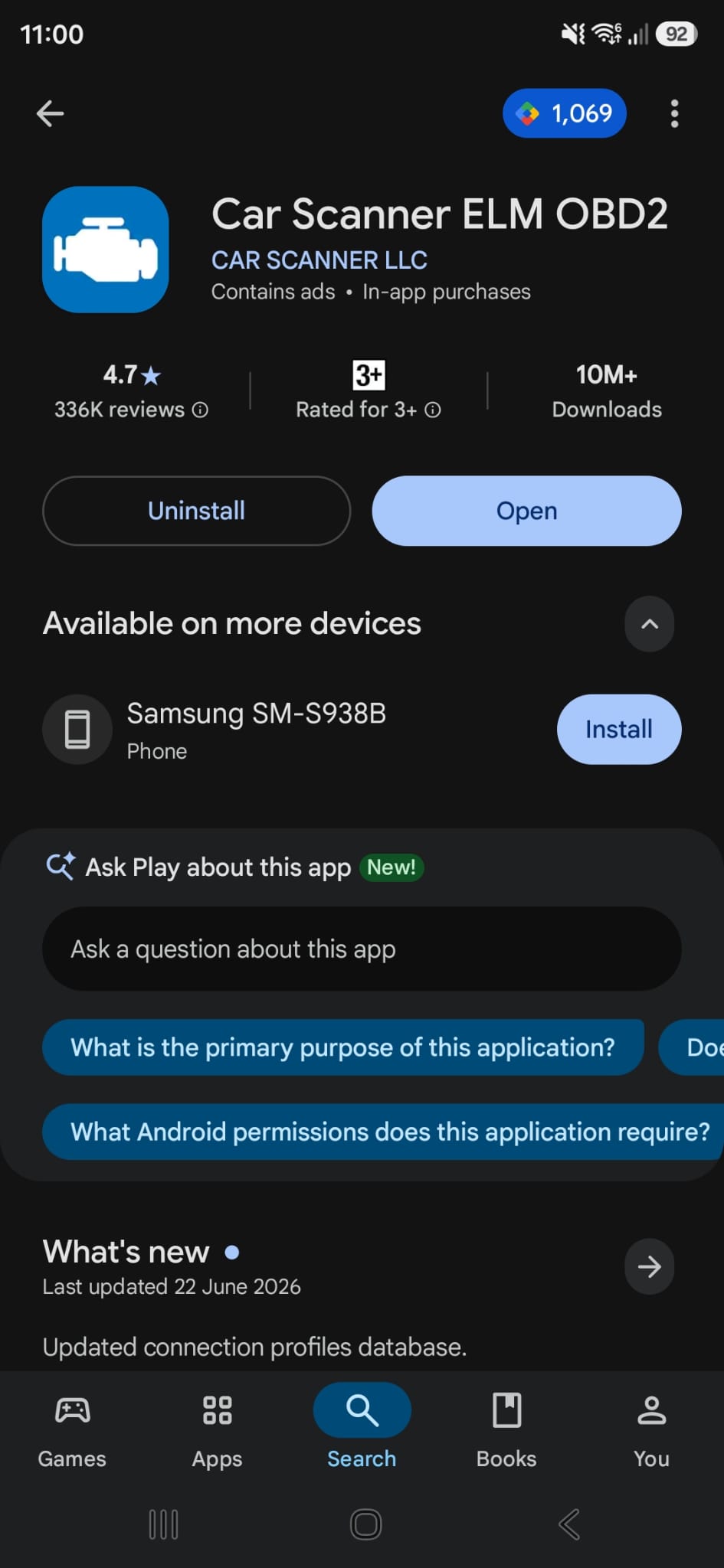
- Search for Car Scanner ELM on the Play Store or App Store.
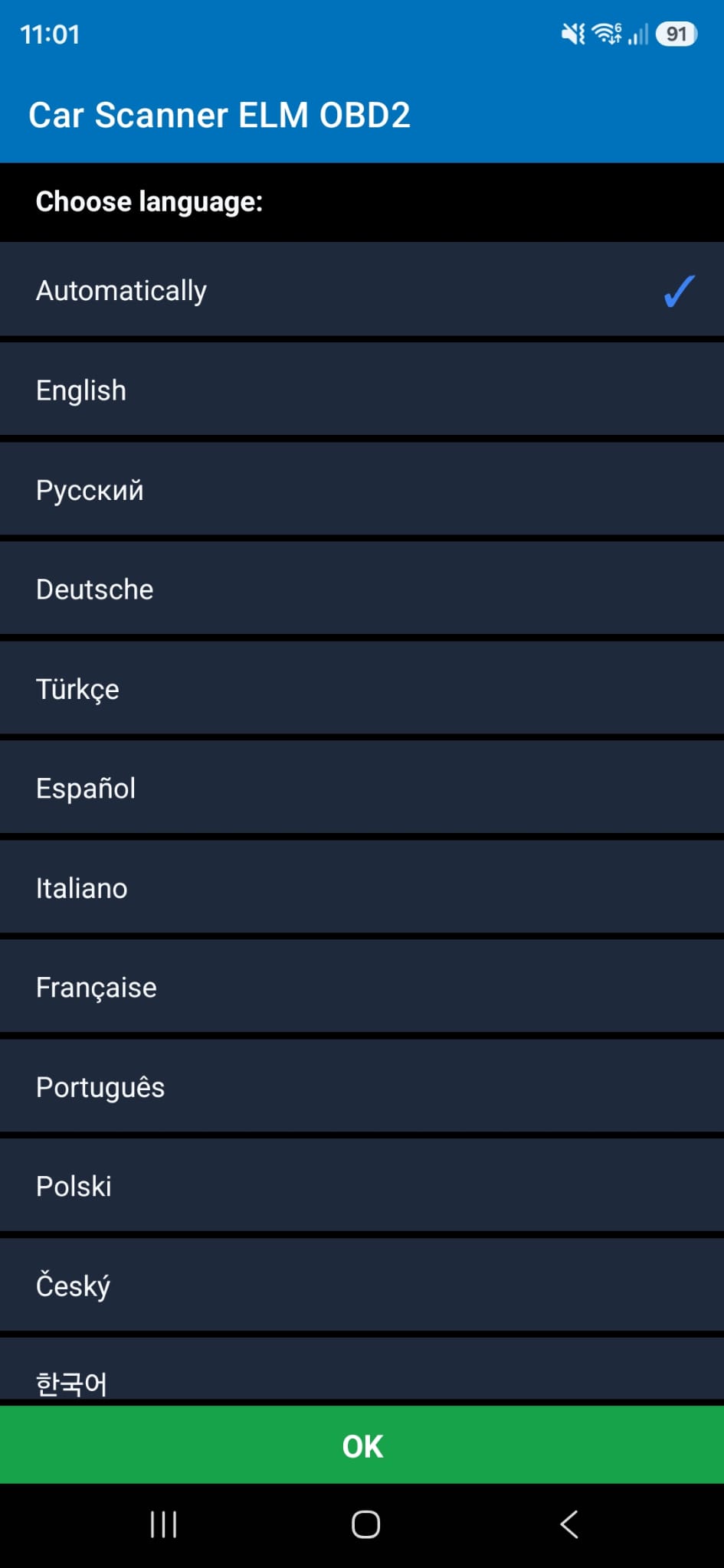
- Select the language as Automatic or English.
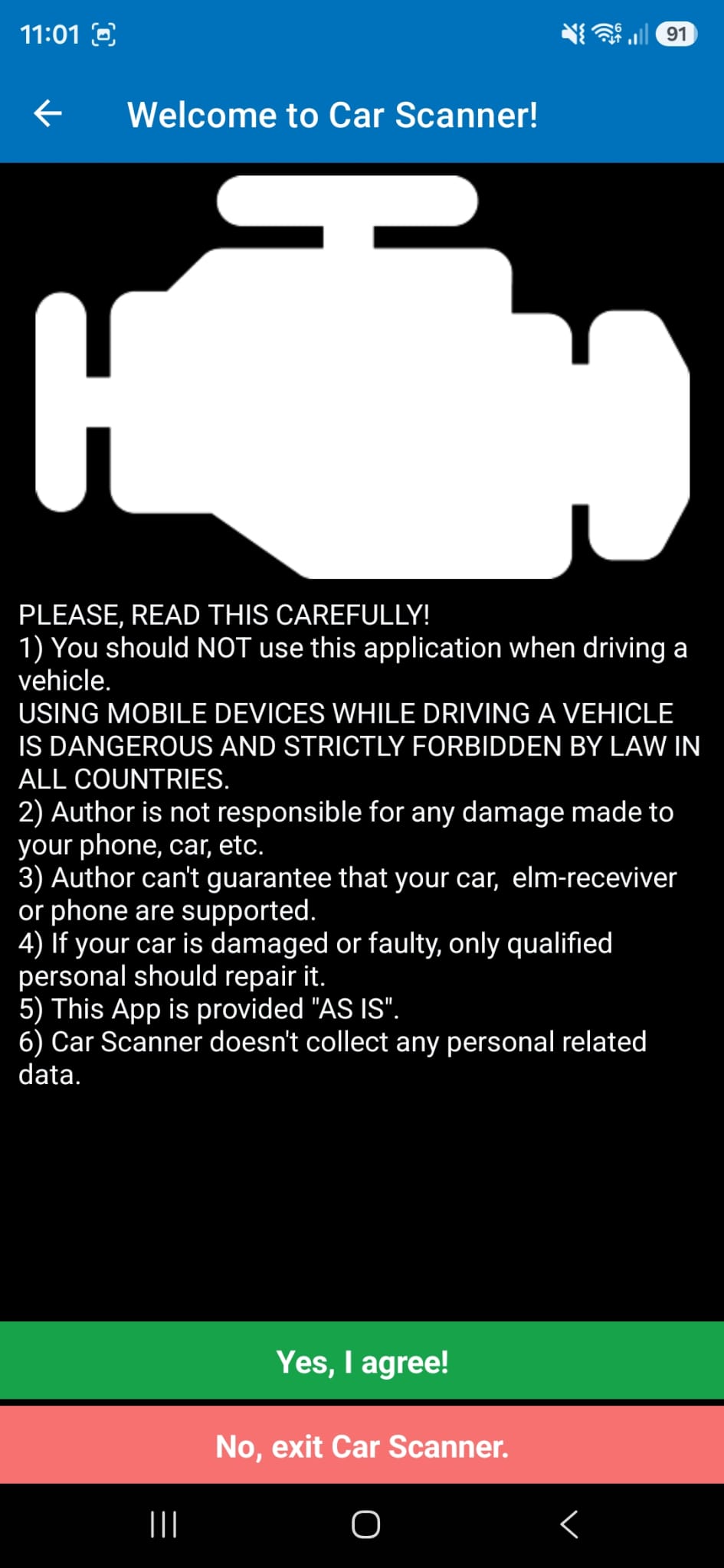
- Select Yes, I agree! on the Welcome to Car Scanner! page.
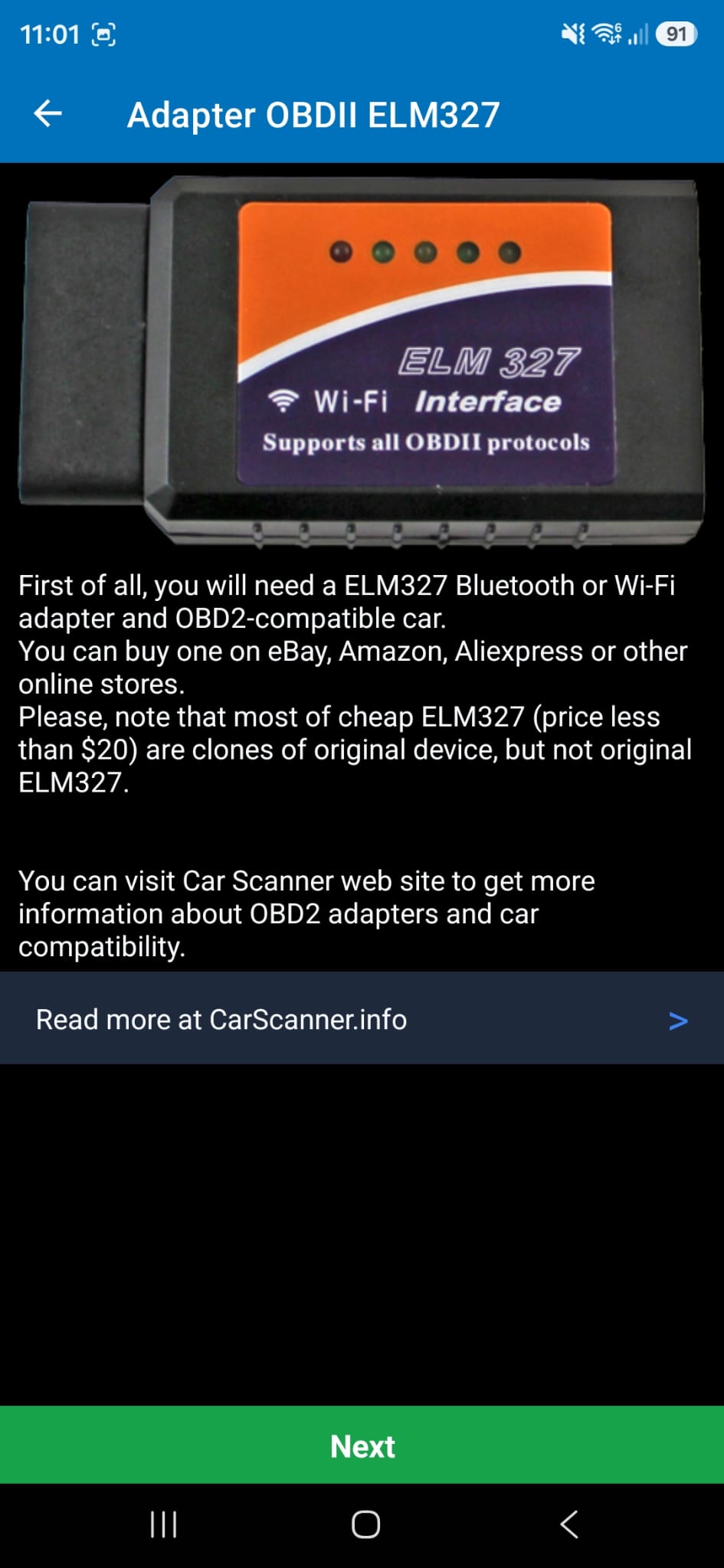
- Click Next on the Adapter OBDII ELM327 page.
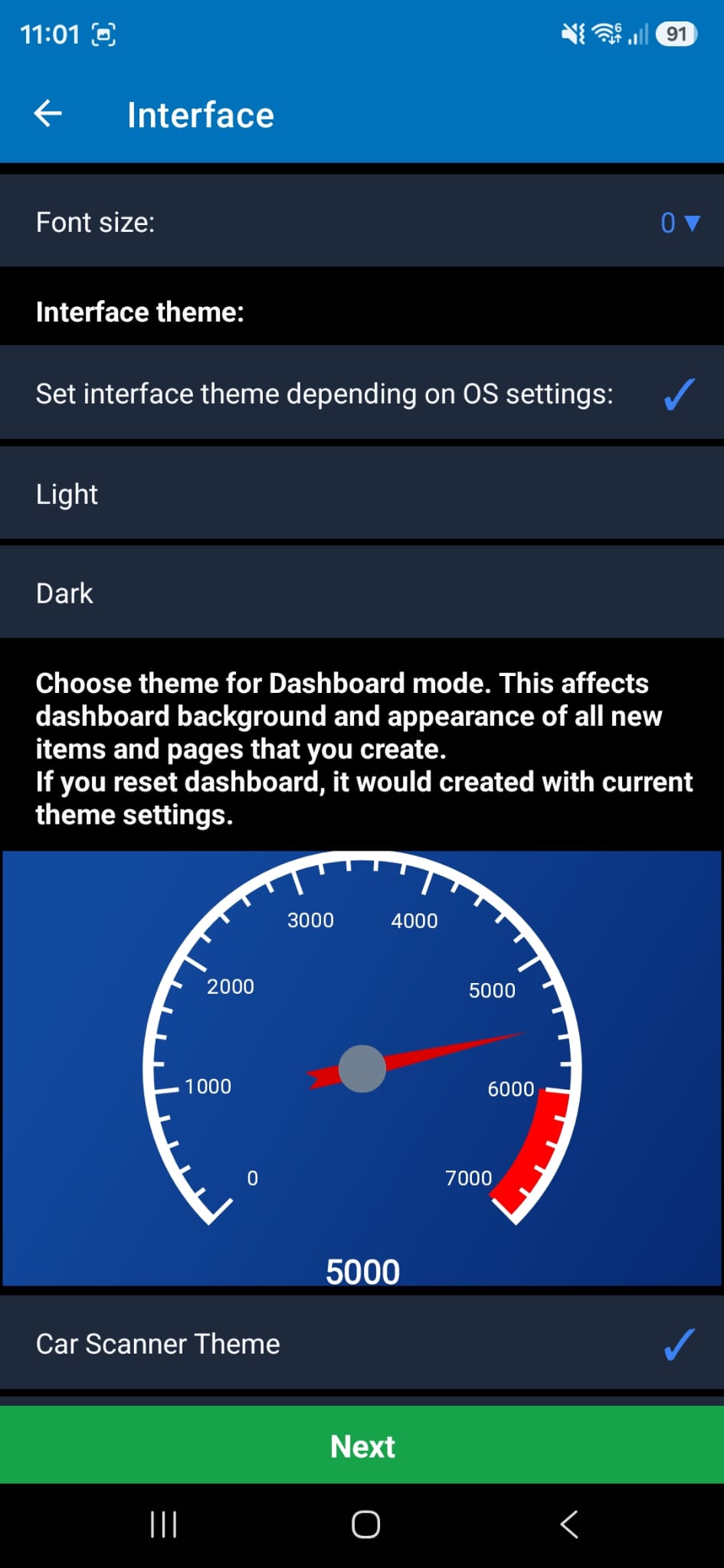
- Select Light or Dark mode depending on your preference, then click Next on the interface page.
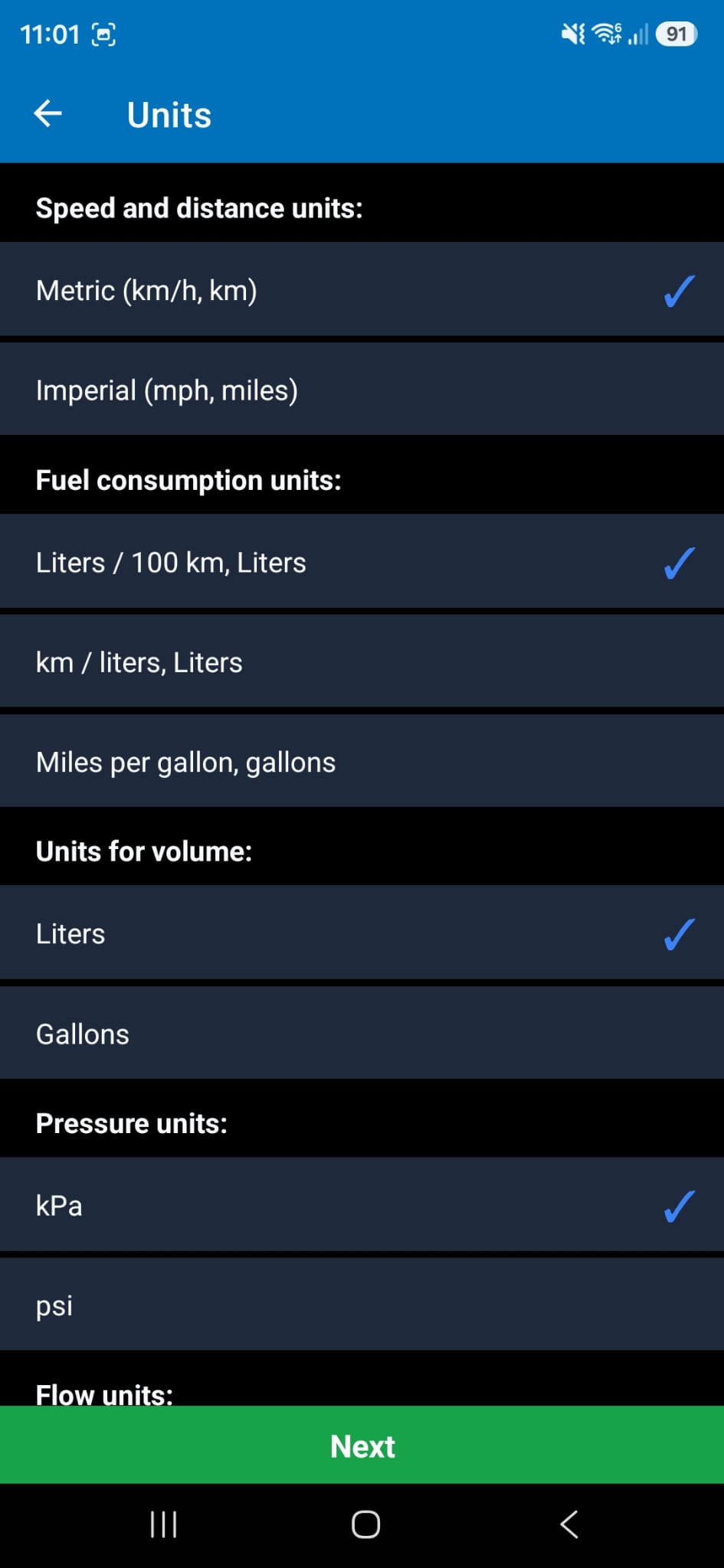
- Click Next on the Units page. You do not need to change these settings.
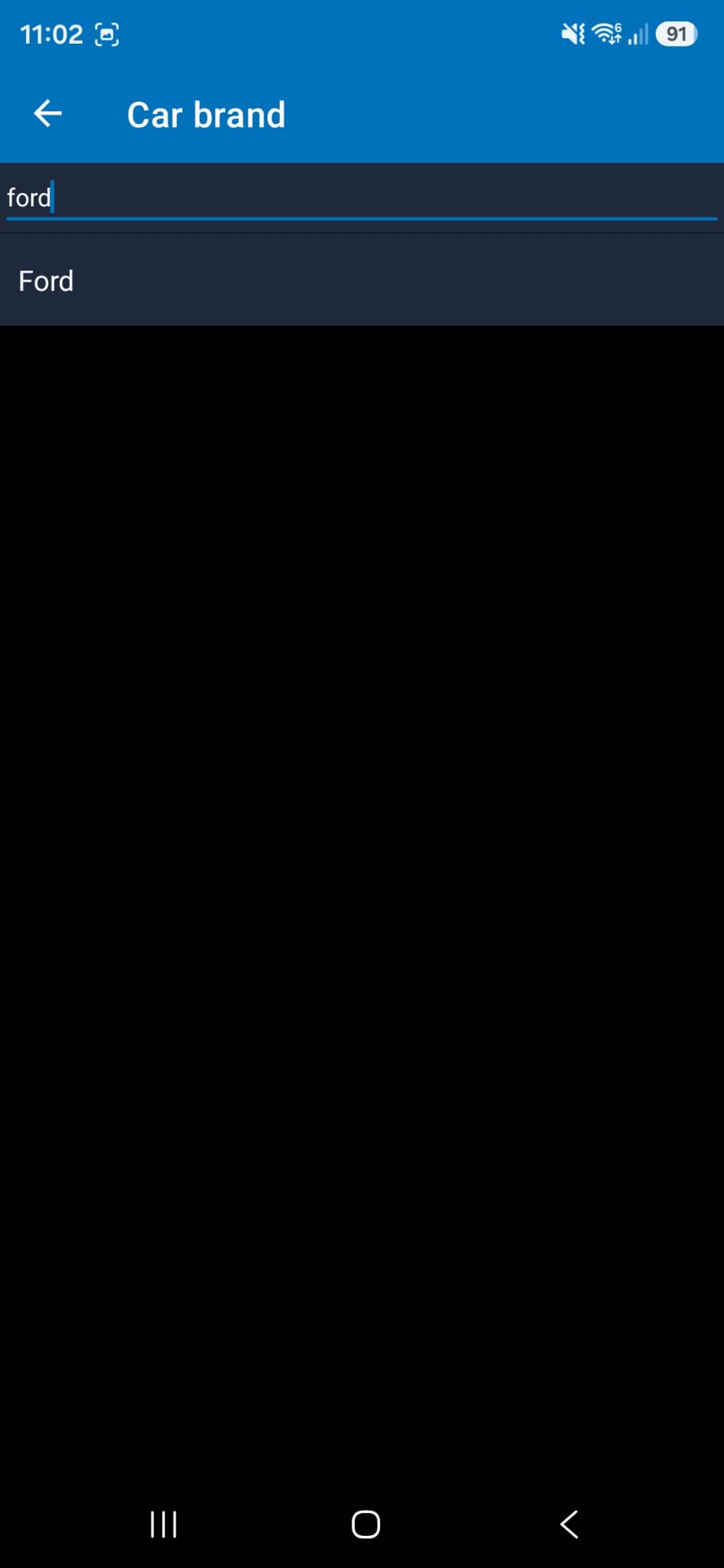
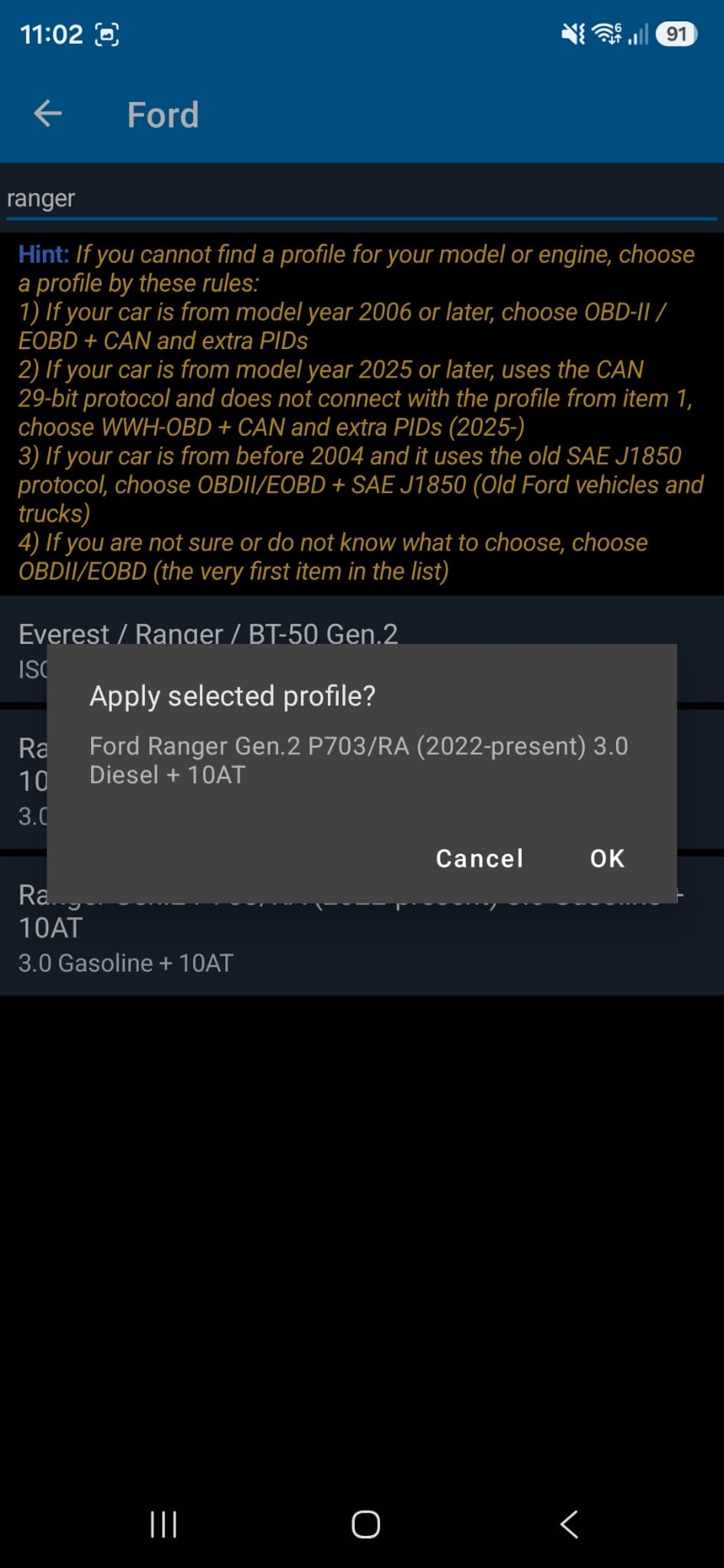
- Search for Ford in the top search bar. Once the result appears, click Ford.
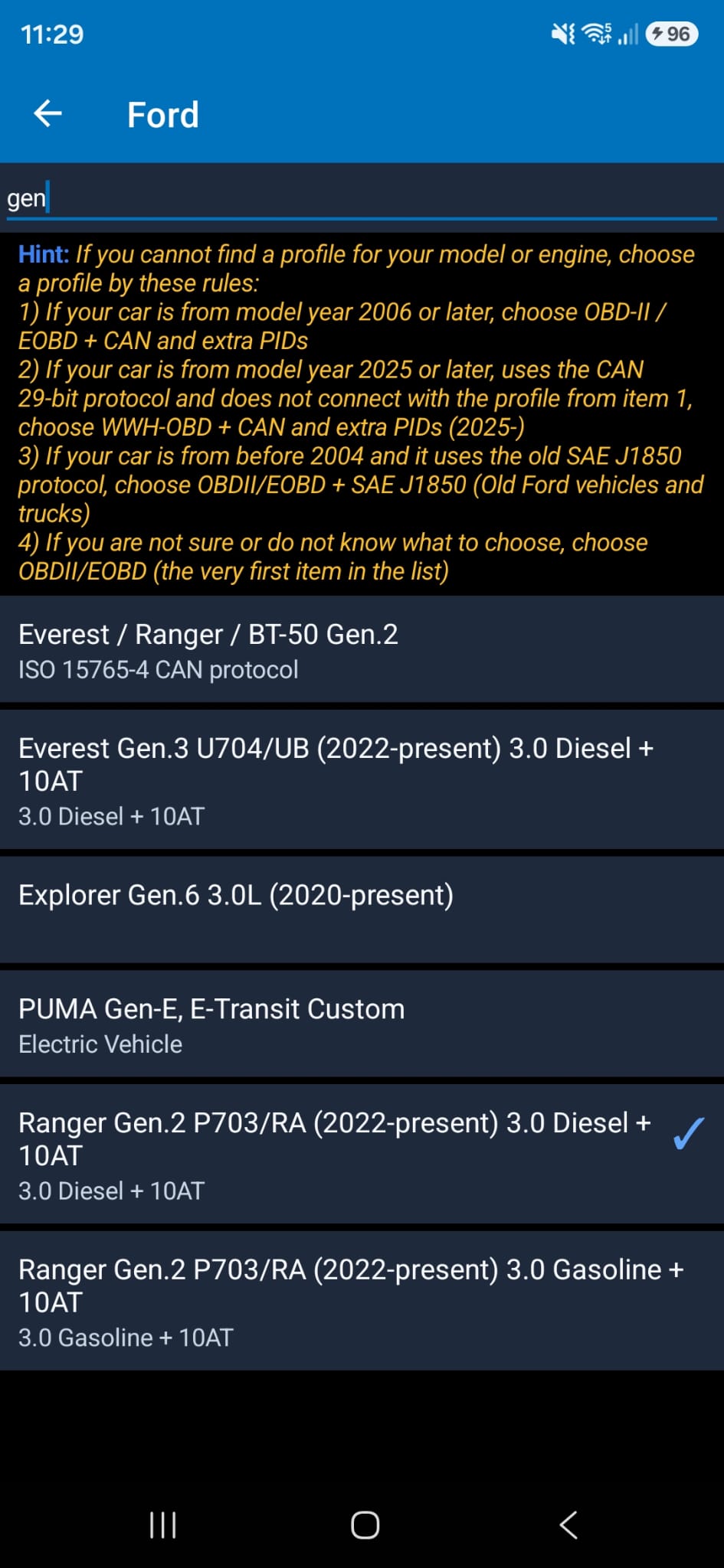
- Search for your car name. For Ford Everest 2022+, use Everest Gen.3 U704/UB (2022-Present) 3.0 Diesel + 10AT. For Ford Ranger 2022+, use Ranger Gen.2 P703/RA (2022-present) 3.0 Diesel + 10AT. For Ford Raptor 2022+, use Ranger Gen.2 P703/RA (2022-present) 3.0 Gasoline + 10AT.
- Click OK for the selected profile.
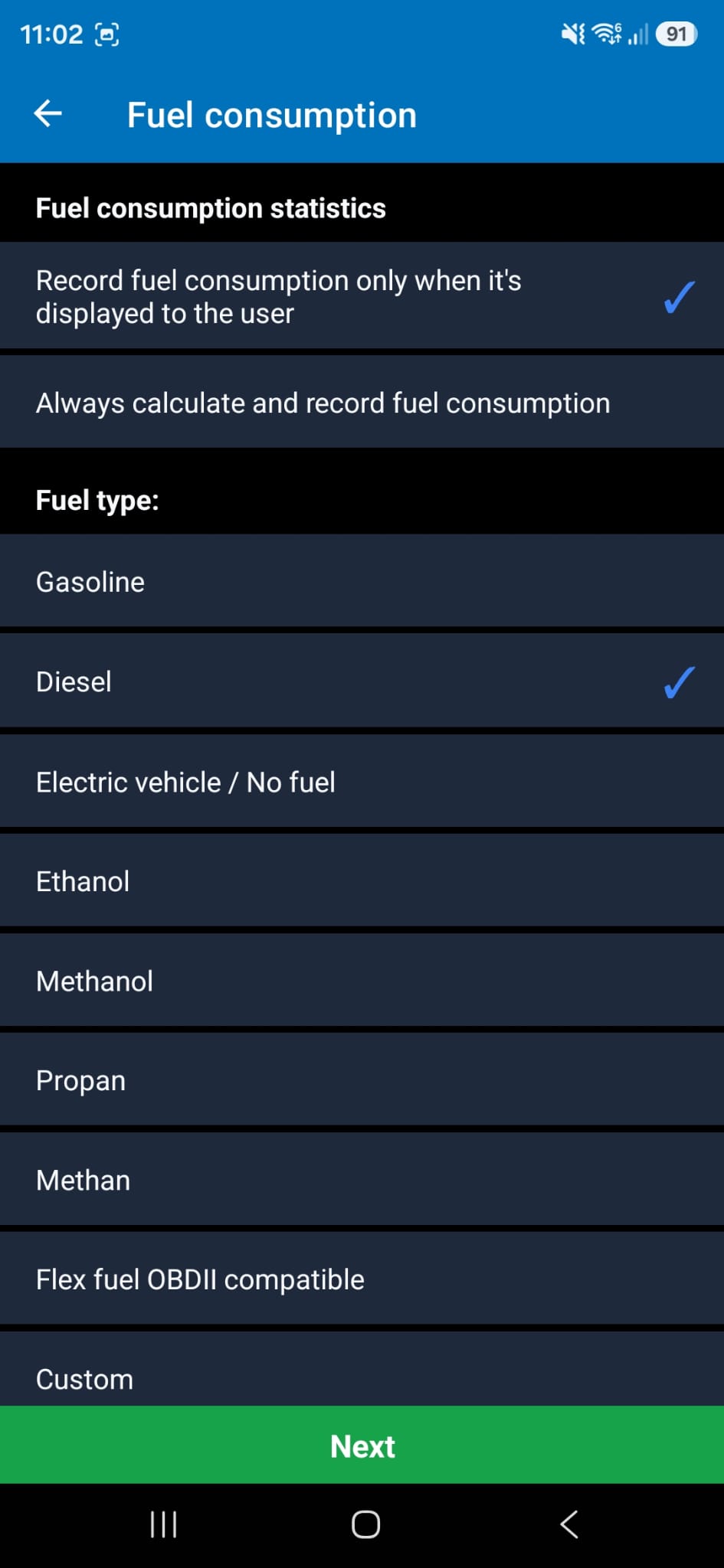
- Select Diesel for Ranger/Everest and Gasoline for Raptor.
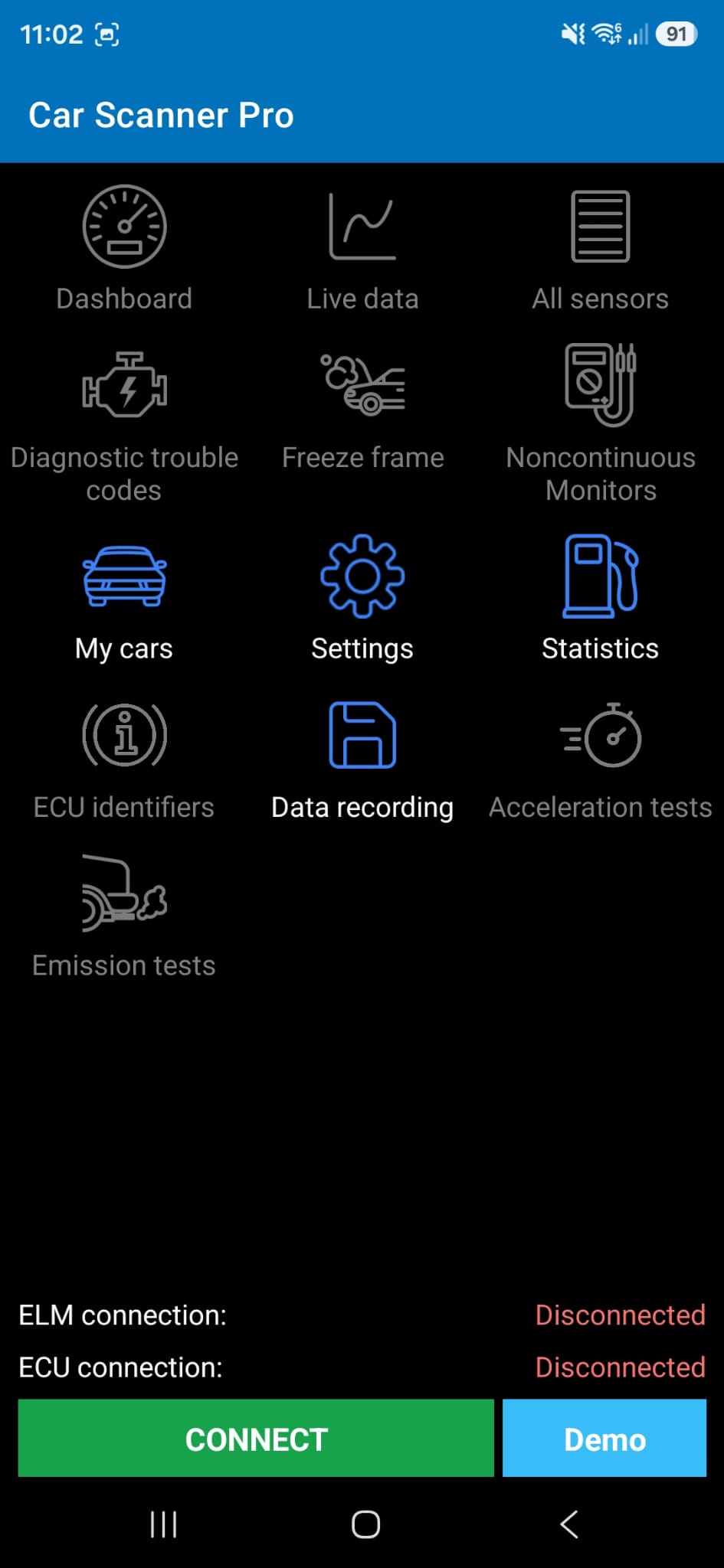
- You should see the home screen. Now click the Settings icon.
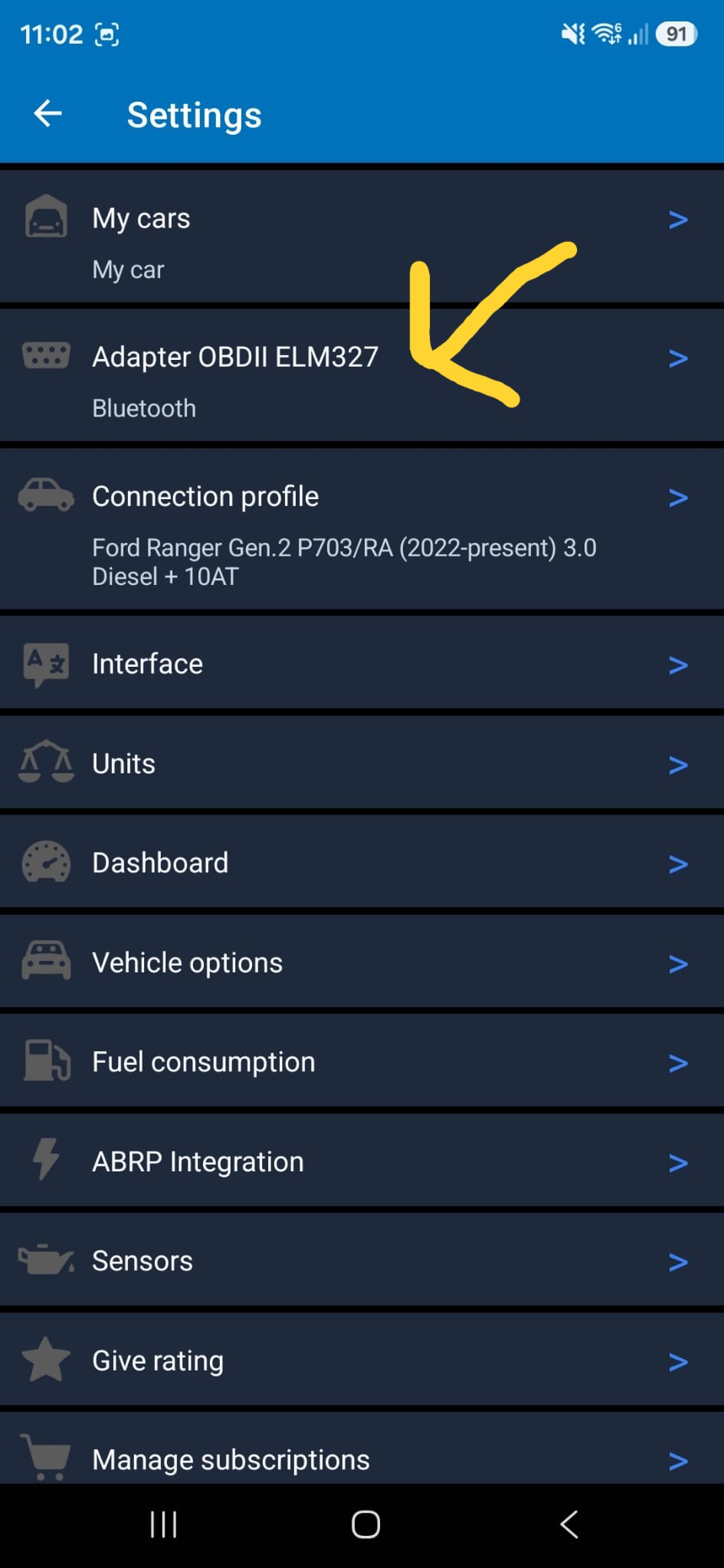
- After clicking Settings, you will see the settings page. You should see your vehicle connection profile in the third row. If you do not see the correct profile, go back to Step 8 and set the profile again. Now click on Adapter OBDII ELM327.
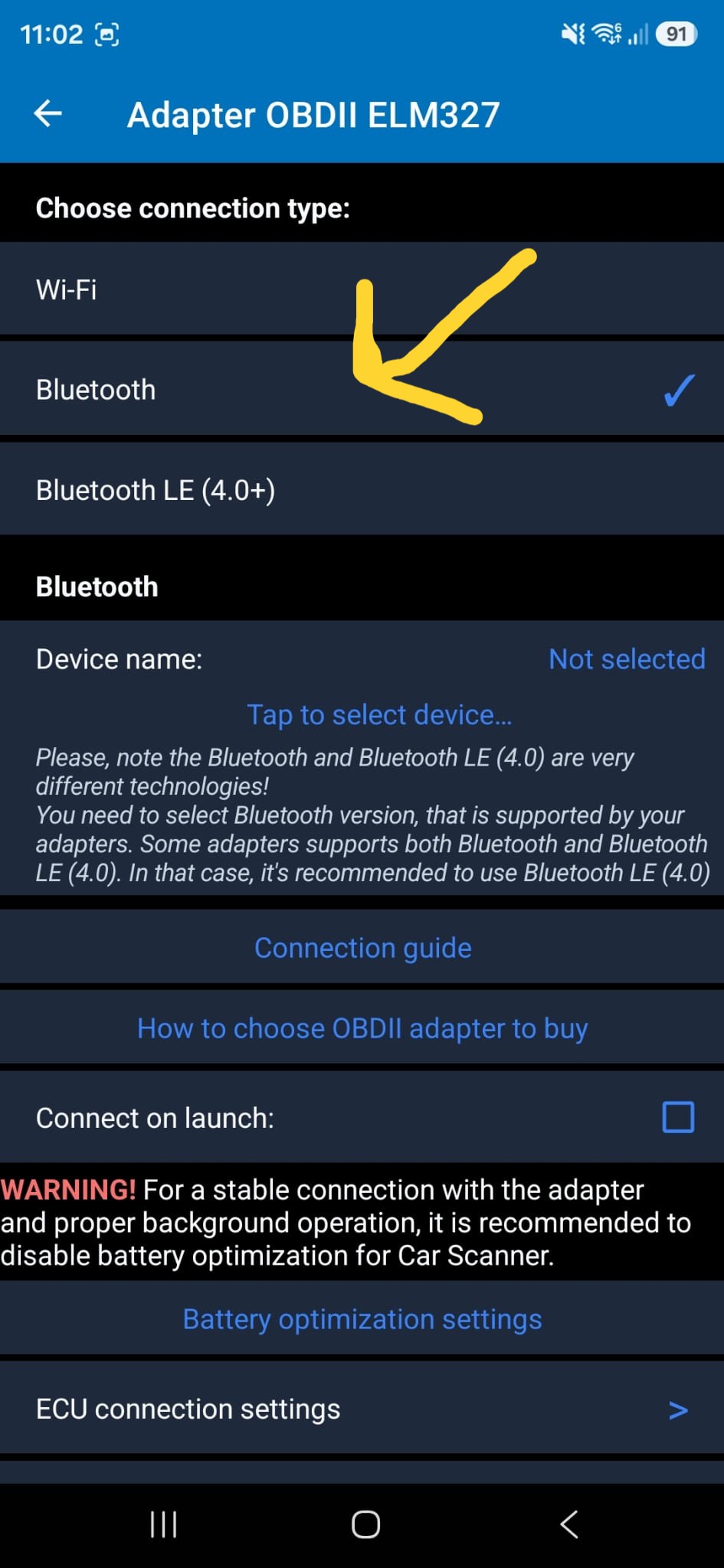
- On the Adapter OBDII ELM327 page, select the second option, Bluetooth, then click the Tap to select device.. button under the Bluetooth section.
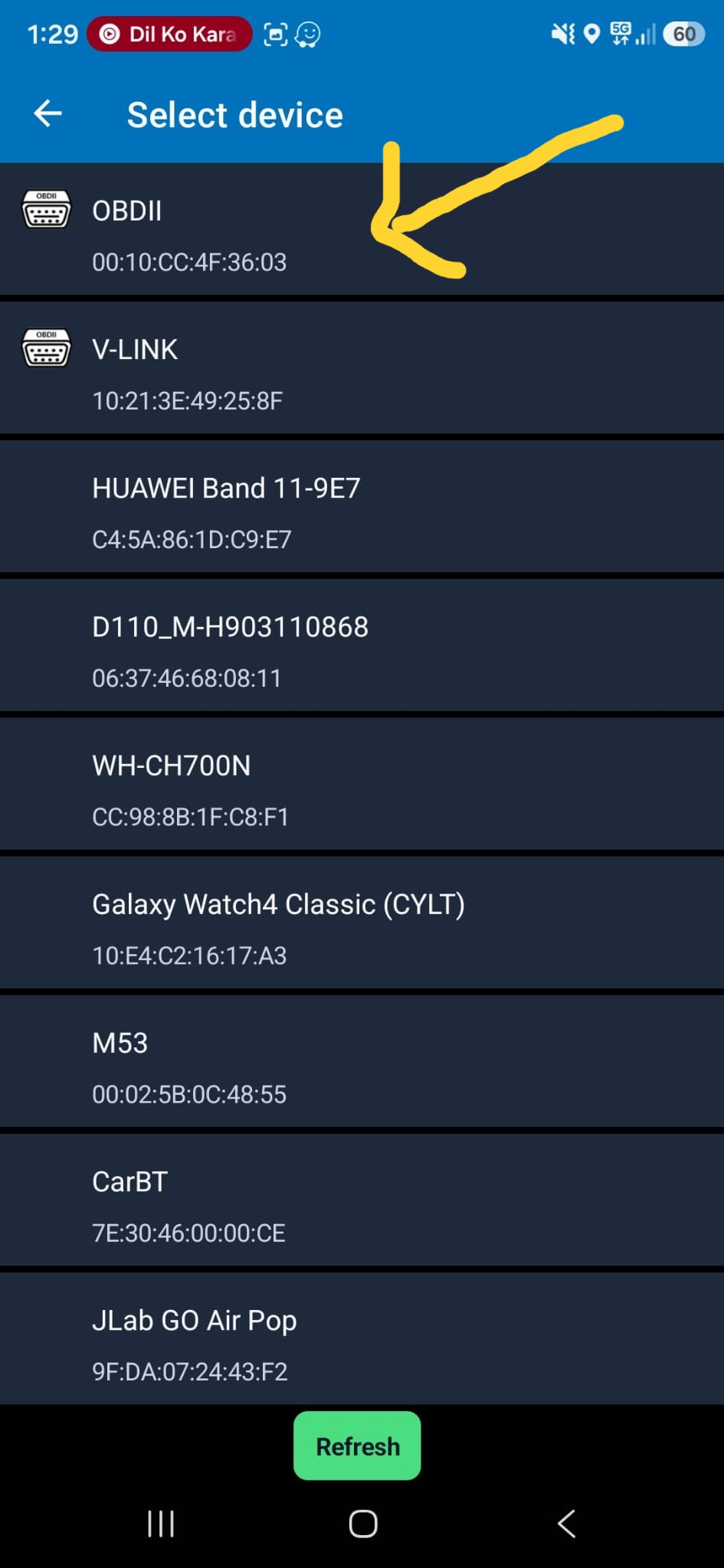
- You should see the OBDII device name at the top with the small icon. If you cannot see it, make sure Bluetooth connection is allowed and the scanner has been added. It may ask for a password; use 0000 or 1234.
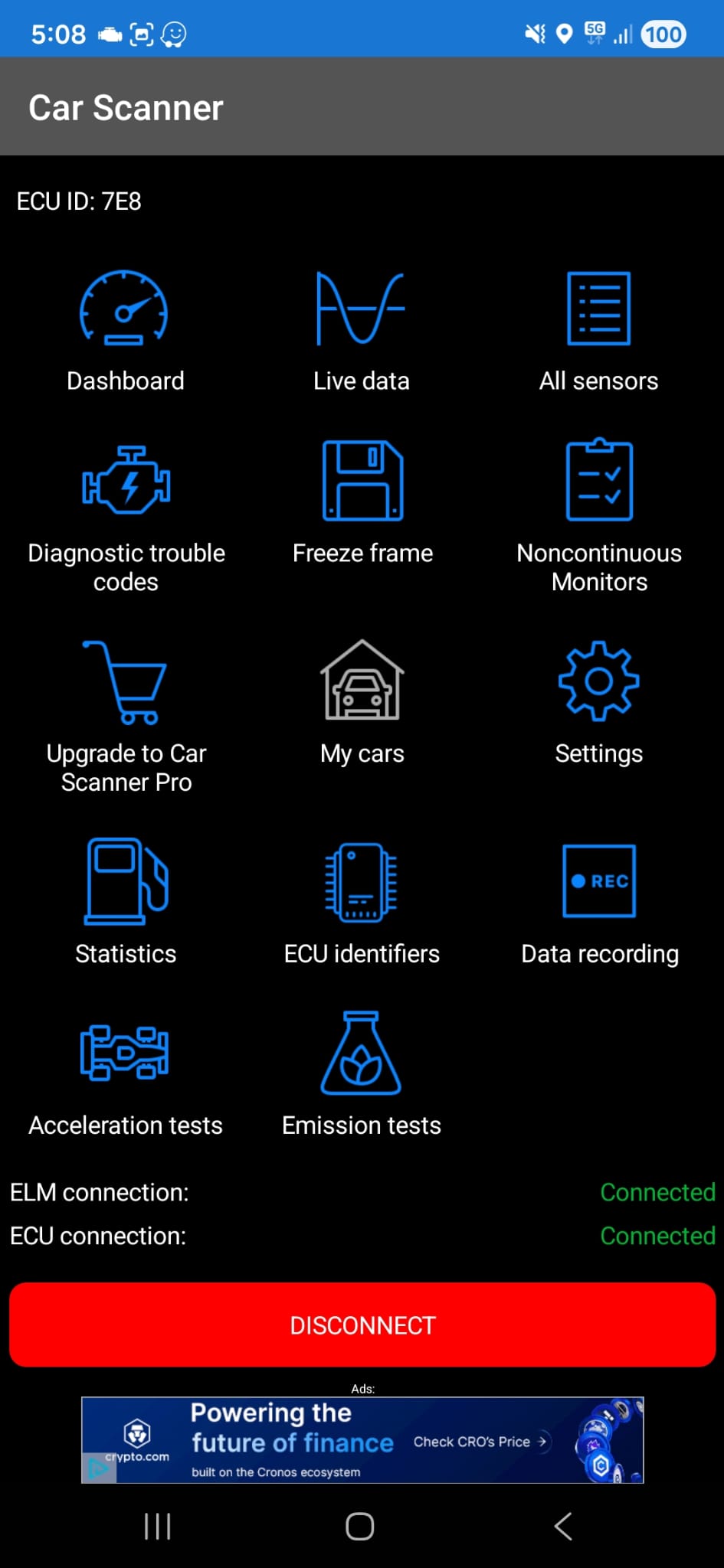
- Go back to the home page and click the Connect button at the bottom.
- After clicking Connect, it can take up to 2 minutes to connect the car to the app. Just wait for the connection to complete. Close any popup messages that appear.
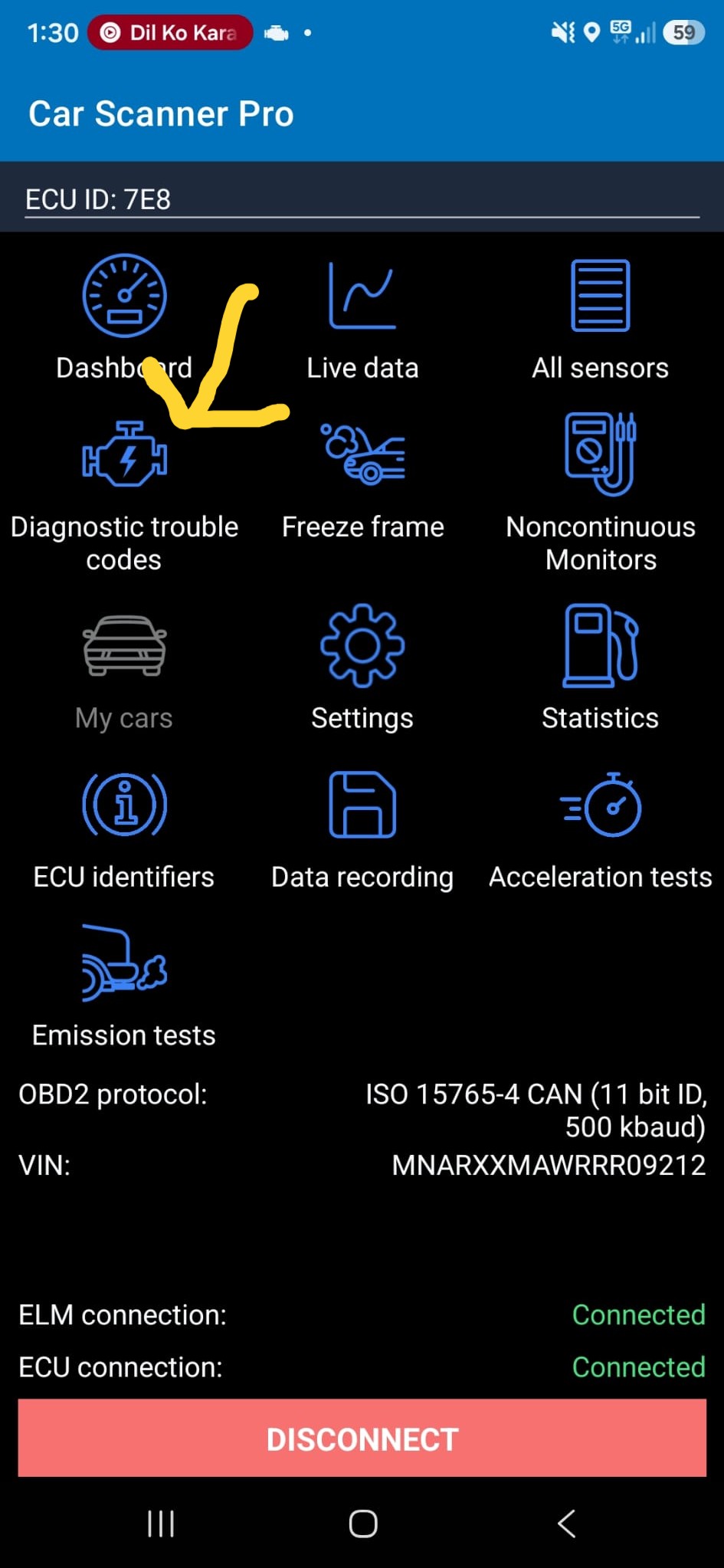
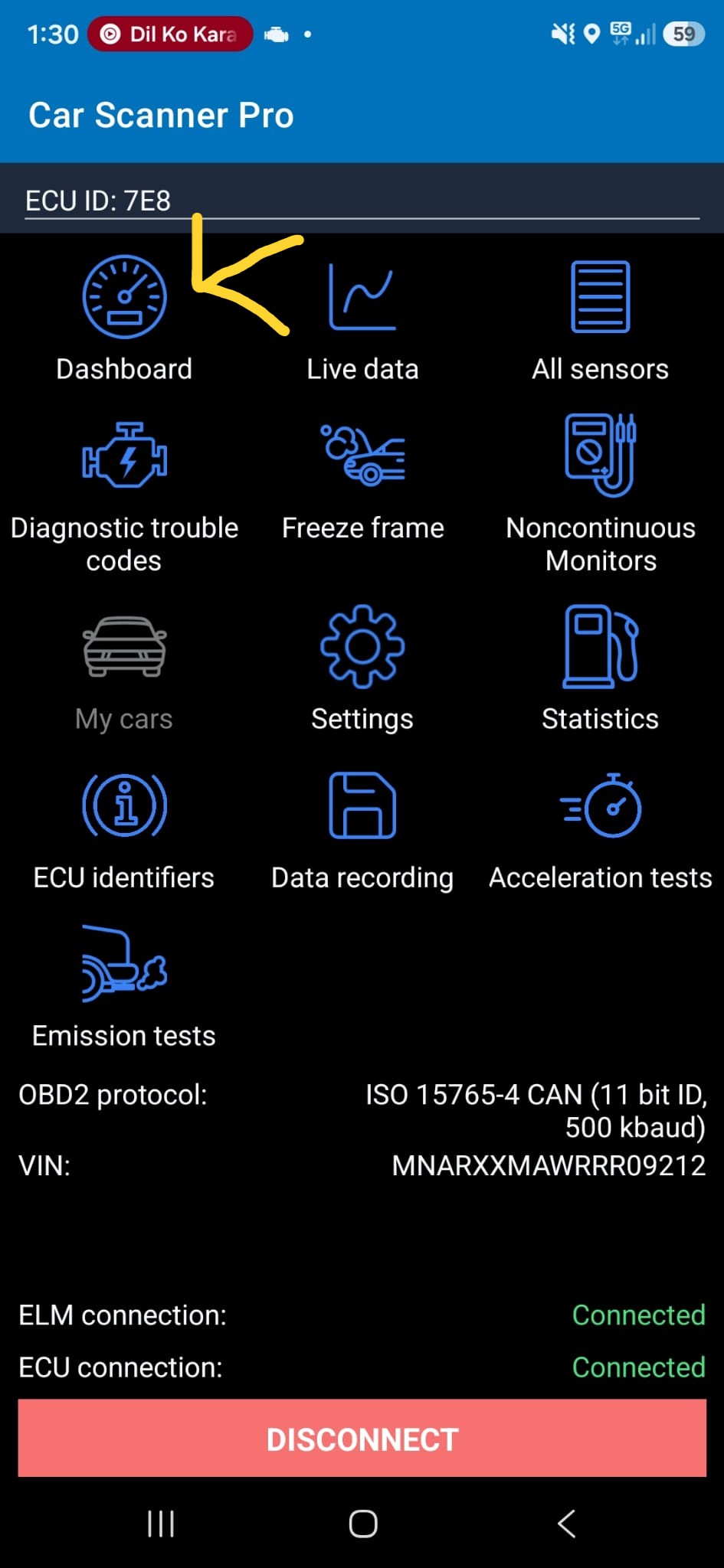
- You should see the Dashboard and Diagnostic Trouble Codes buttons enabled on the screen.
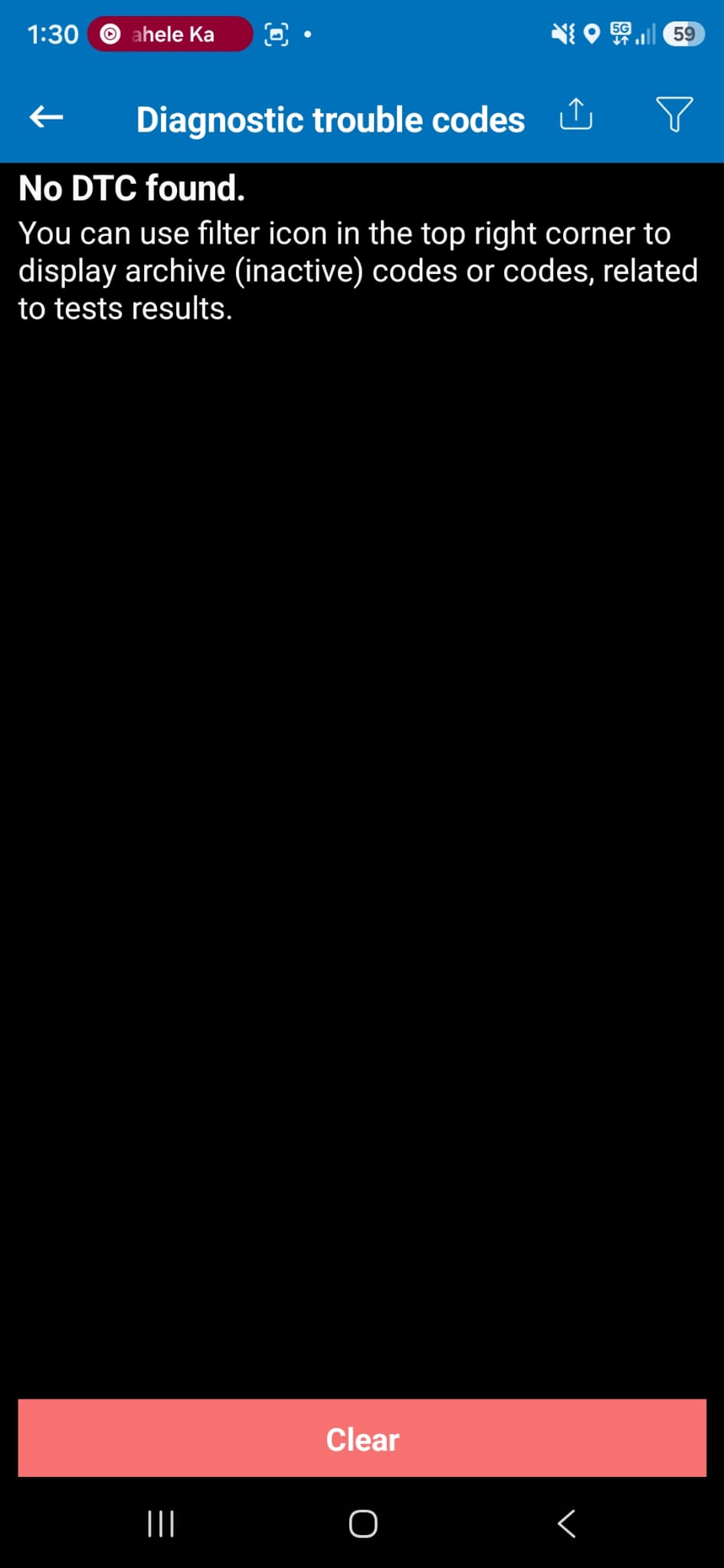
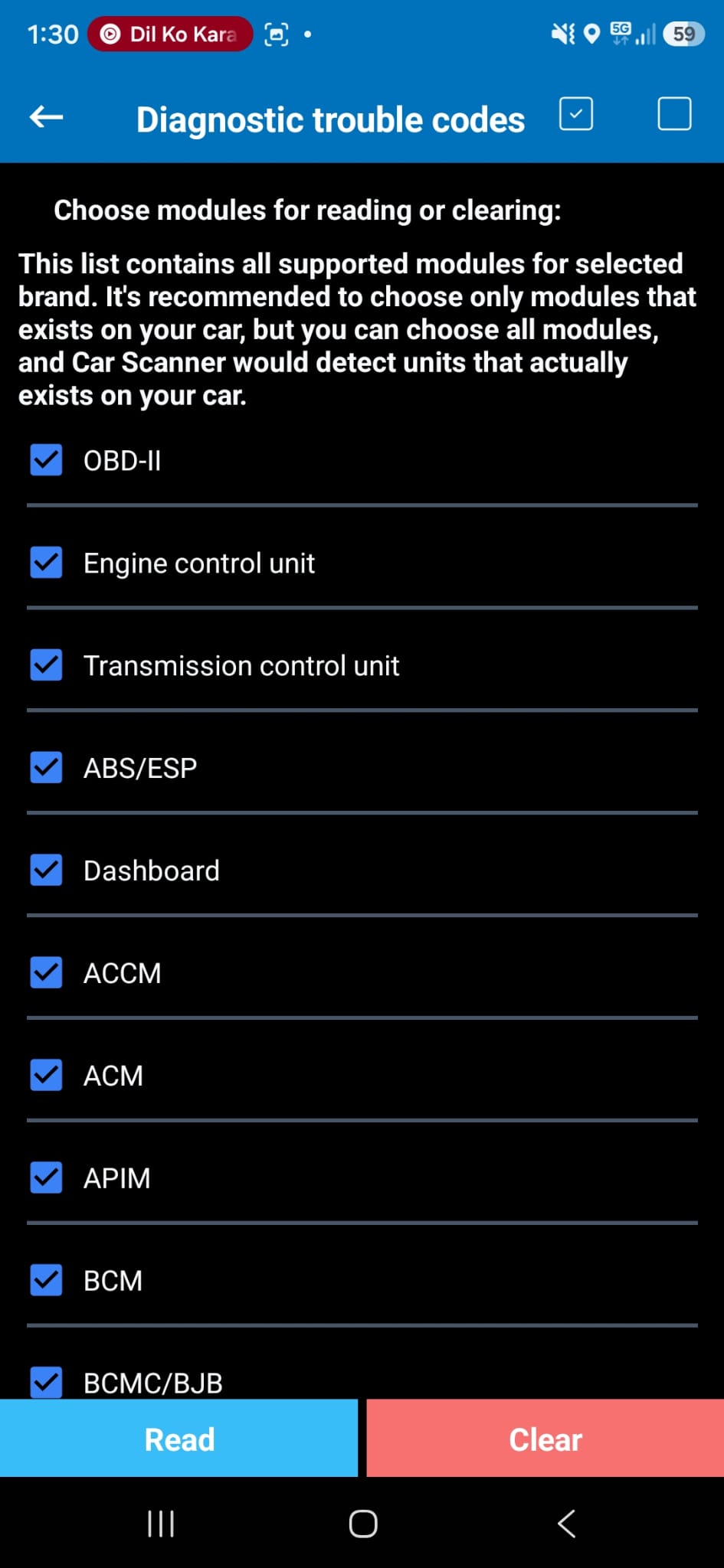
- To clear trouble codes, click on the Diagnostic Trouble Codes button and then click Read. It will take a few minutes to read all the codes. You can then use the Clear button to reset them. If some code remains after the reset, check it online or reach out to us via text or email for assistance.
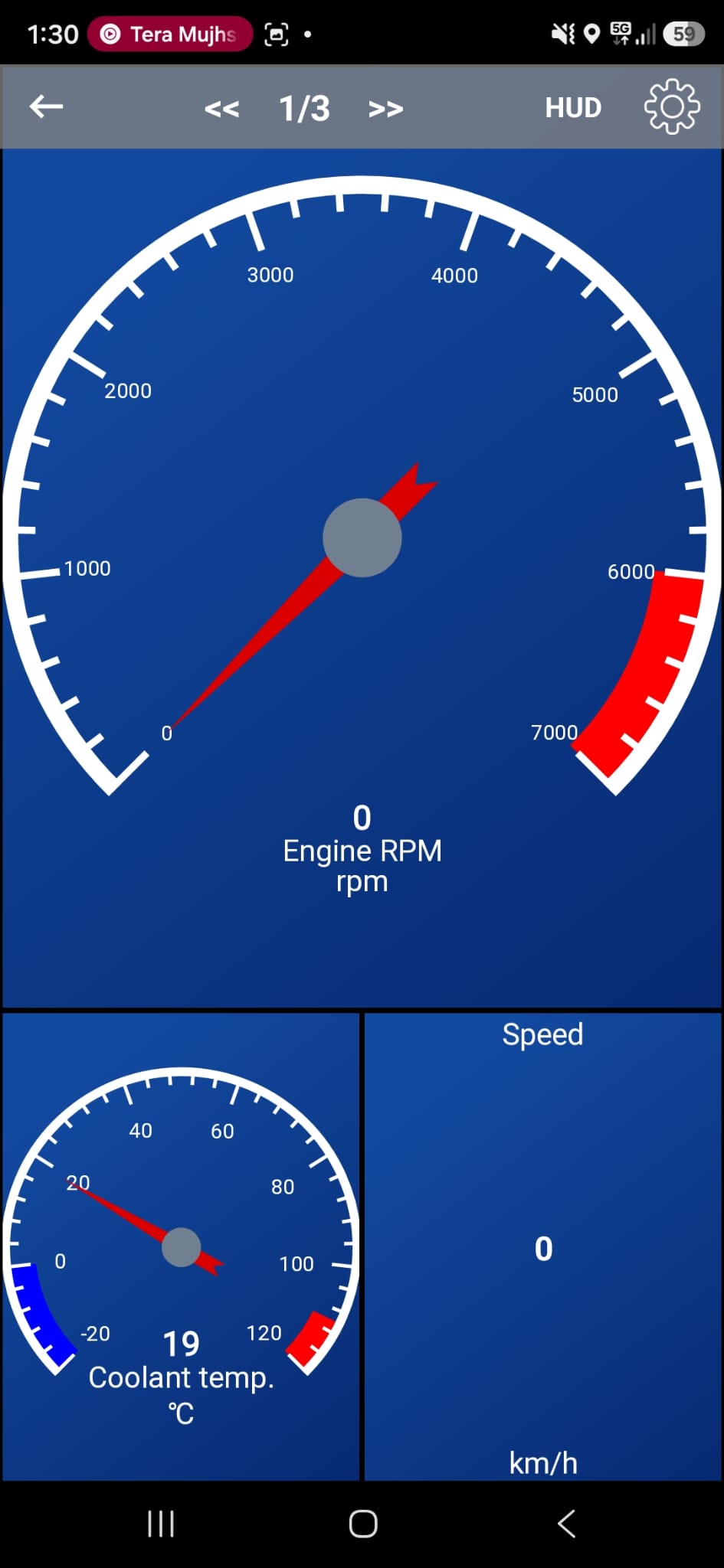
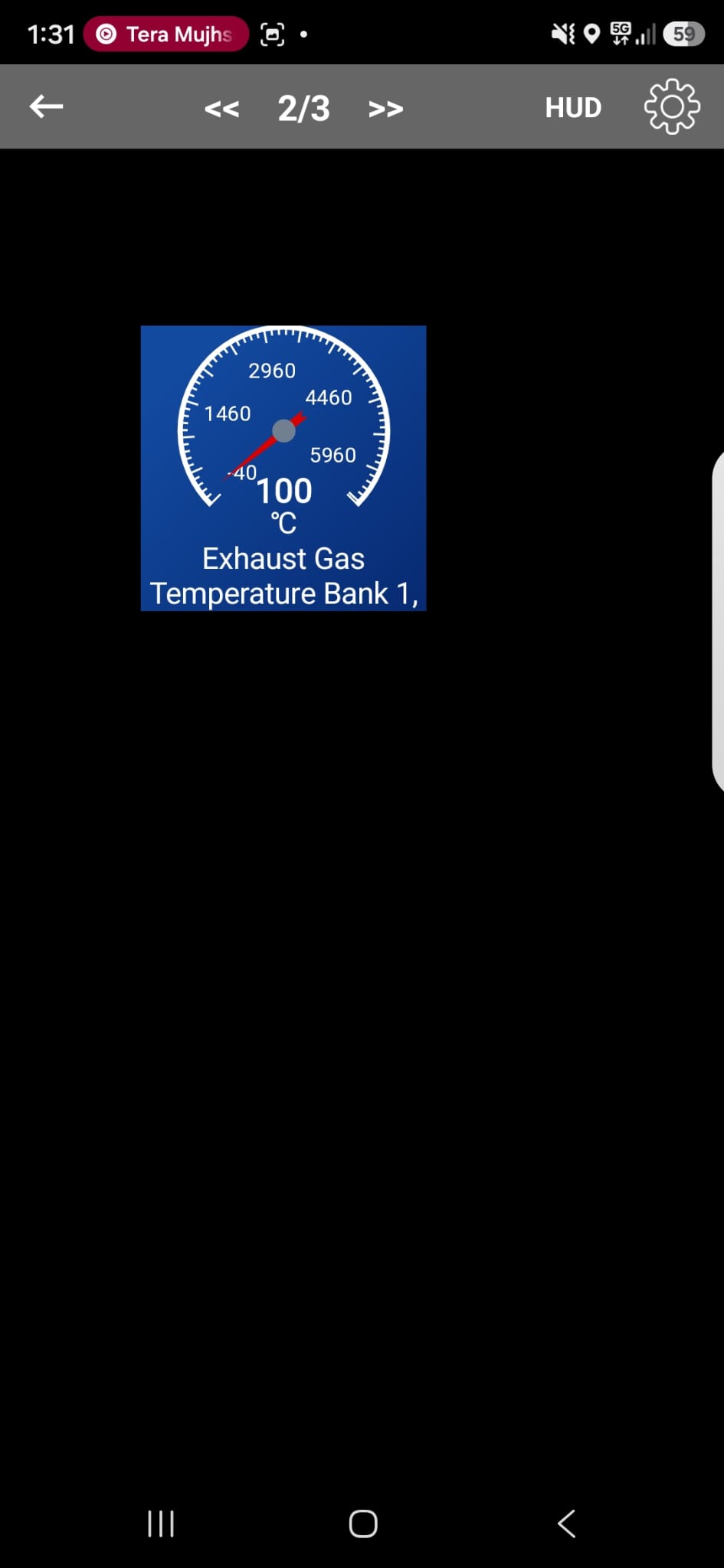
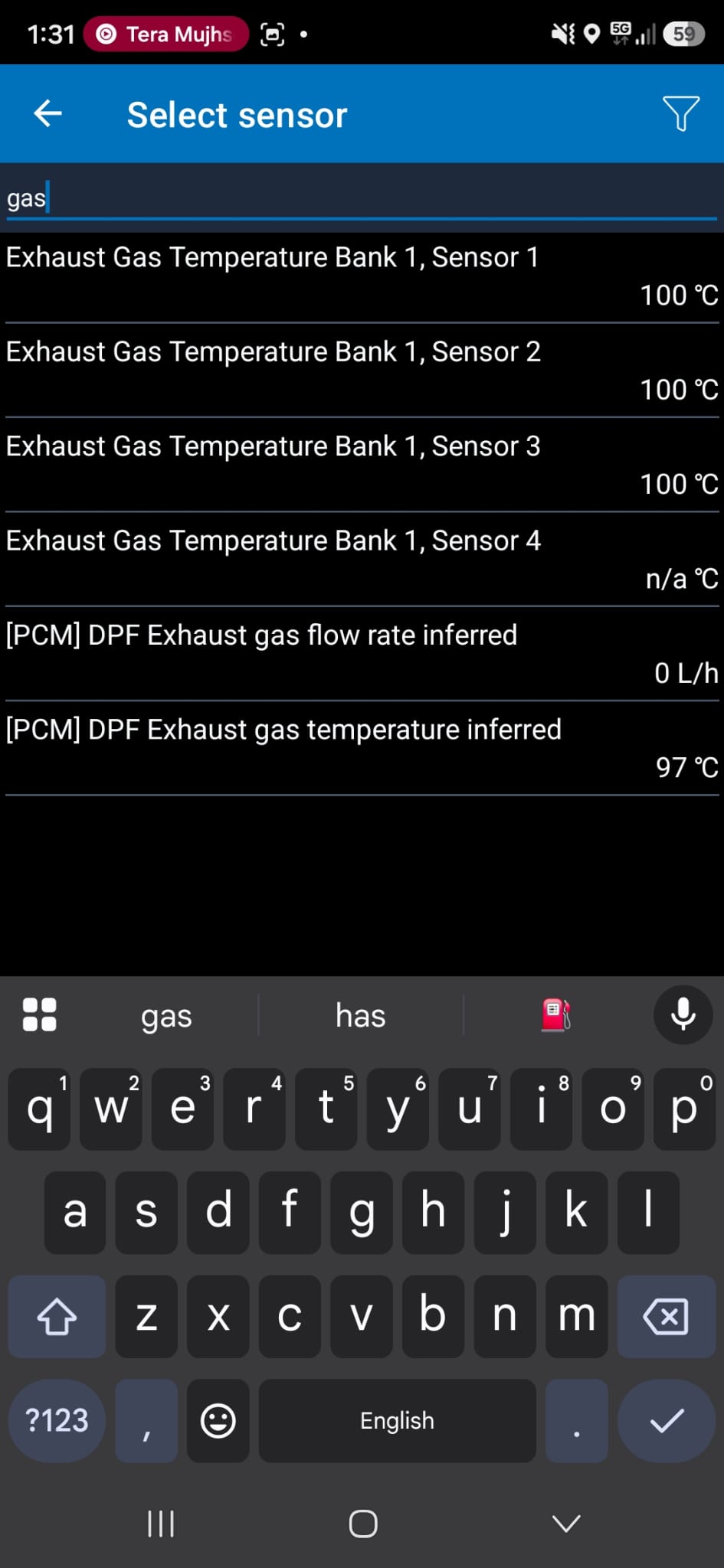
- Step 20: User can add gauges to the dashboard. Click on the Dashboard icon. It will show three pages: you can either edit an existing template or open page 2, which is empty. Double tap anywhere on the screen to add more gauges. You can add transmission temp by searching ATF in the search bar. It will give you a digital gauge for Automatic Transmission Fluid.
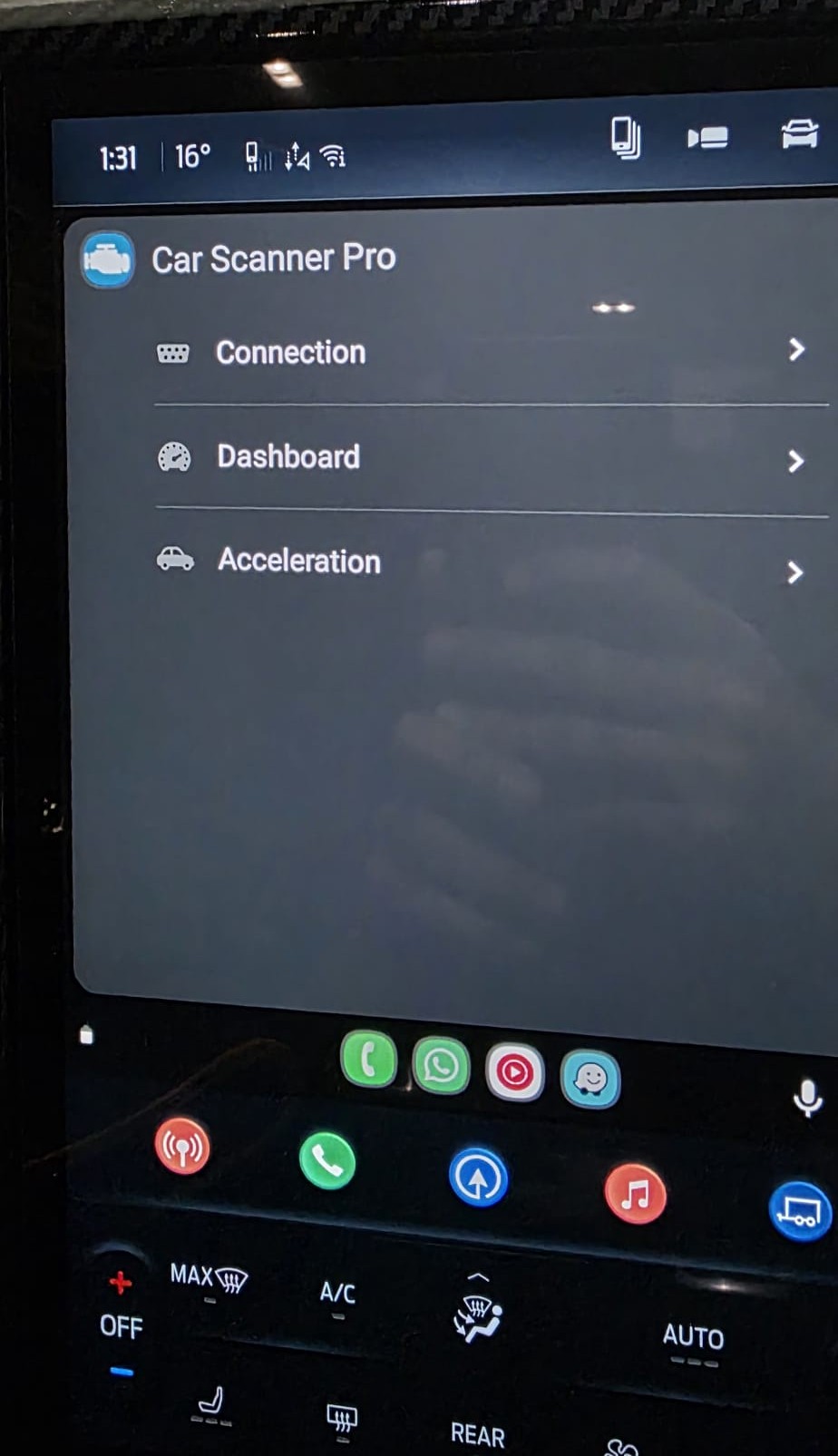
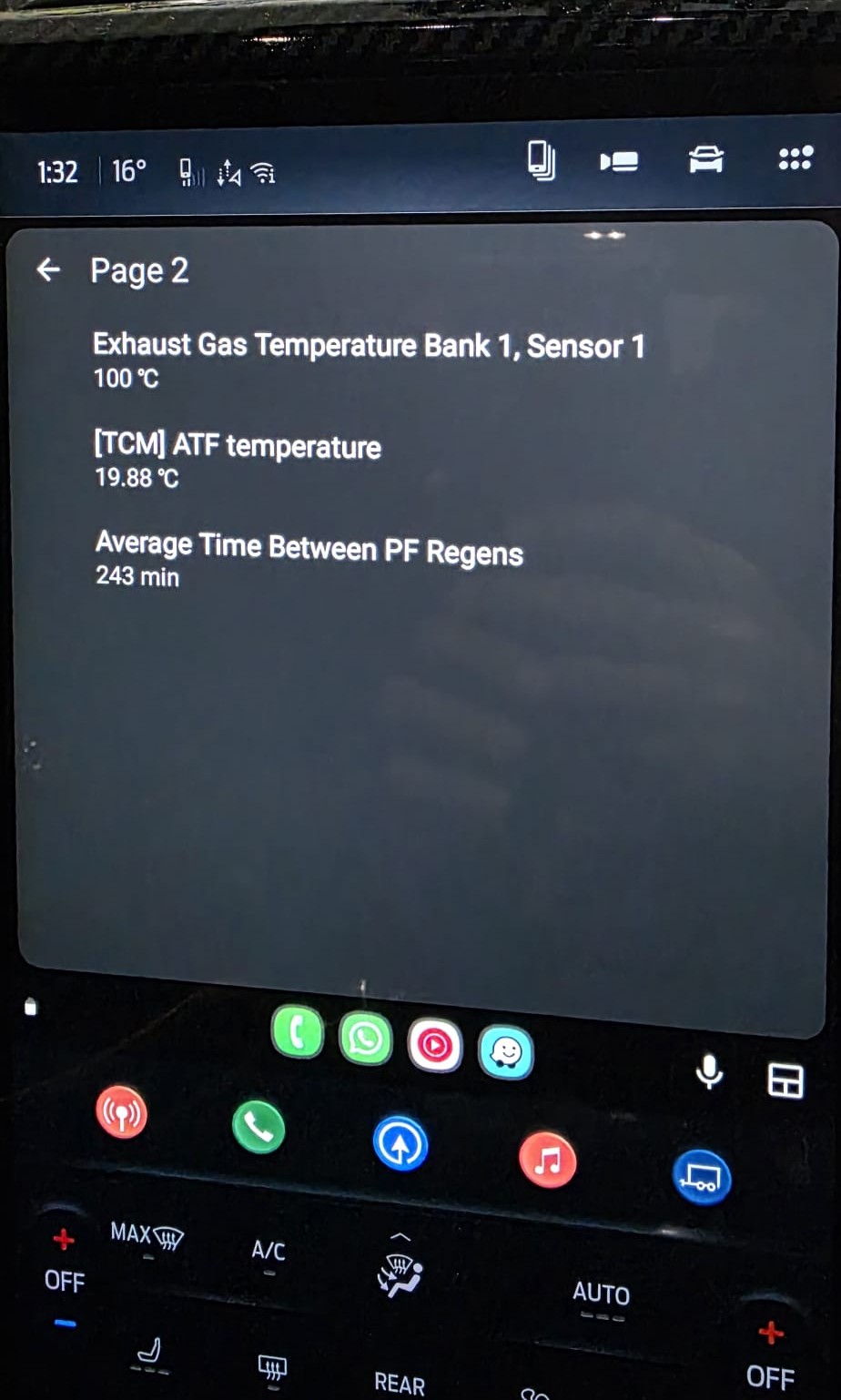
- Last step: You can then open the OBD2 app on your connected CarPlay or Android Auto on the infotainment screen. Select the dashboard page you have customised and view the digital gauges with realtime values.
If the device does not connect, check battery power, move closer to the vehicle, and confirm the dongle is supported by your chosen app. If you still have any questions, you can reach out to us via email or text message.